
The DATEVALUE Function in Apple Numbers Explained
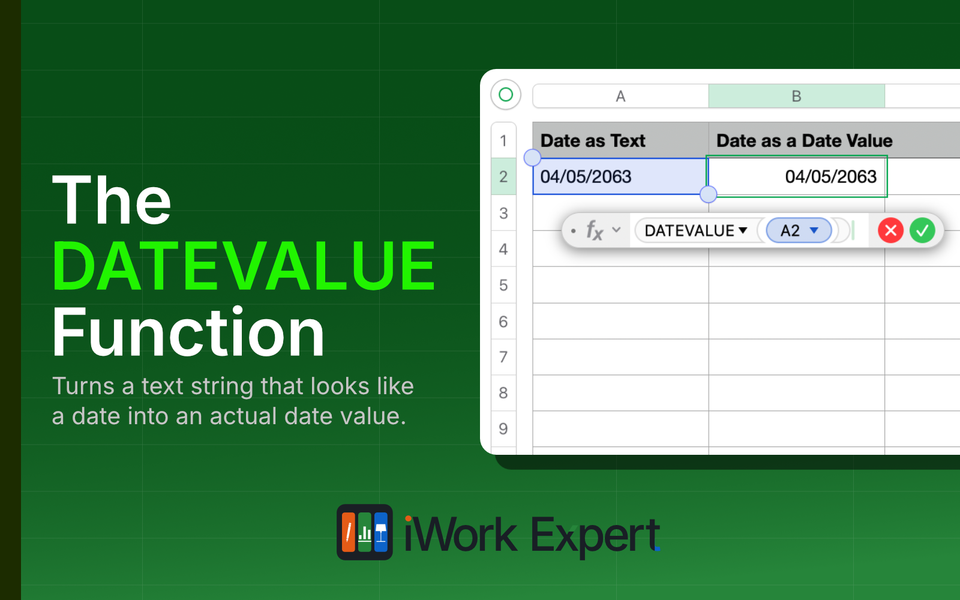
DATEVALUE converts a date stored as text into an actual date value Numbers can work with. It exists almost entirely for one reason: compatibility with Excel. If you open a spreadsheet someone built in Excel and see DATEVALUE in the formula bar, that's why it's there.
There's a Numbers-native use too: text-formatted dates from an imported CSV or a copied web table, which won't sort or calculate correctly until converted. DATEVALUE can help, though it isn't always the right tool depending on how the text is formatted. This post covers what it does, where Numbers and Excel diverge, and when you'd actually reach for it.
DATEVALUE Function Details

DATEVALUE formula converting text into a valid date.Purpose: Converts a date stored as text into a date/time value Numbers can use for sorting, date math, and other date functions
Result: A date/time value
Syntax: =DATEVALUE(date-text)
Arguments: date-text
- date-text = a cell reference or text string containing something that looks like a date, such as "1/27/2025" or "Jan 27, 2025"
When You'd Actually Use The DATEVALUE Function
DATEVALUE takes a piece of text that looks like a date and converts it into a real date/time value. Once a cell holds a date/time value instead of plain text, Numbers can use it in date math: comparing dates, calculating durations, sorting chronologically, feeding it into other date functions like DATEDIF or EOMONTH.
The function accepts a range of common date formats as input. Short numeric formats, abbreviated month names, and four-digit years all work. Where it fails is when the text isn't resolvable to an actual calendar date. More on that in the example below.
Apple includes DATEVALUE specifically because Excel needs it. In Excel, dates that land in a spreadsheet as text (from an import, a form export, etc.) won't behave like dates until something converts them. DATEVALUE is that conversion tool in Excel's world. Numbers is generally better at recognizing dates the moment you type them, so the function mostly matters when files cross between programs.
How to Use the DATEVALUE Function in Numbers
I'll show a brief step by step guide on how to use DATEVALUE for converting a date formatted as text to a date/time value format.
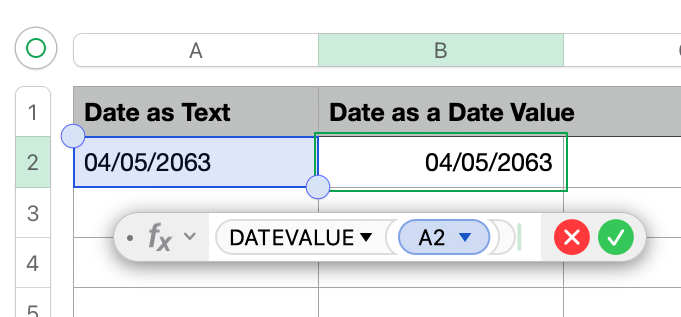
DATEVALUE function in Numbers to convert a text-formatted date in column A into an actual date value in column B.Step 1: Reference the date-text The first argument is date-text. In our example, that's cell A2.
Step 2: See the result The completed formula is =DATEVALUE(A2). This provides the results April 5, 2063. Note that while the cell “looks” the same as the date-text input, it is now formatted into a proper date/time value.
An Example Using DATEVALUE
Column A contains dates typed as plain text from an import in a CSV file or copied from another source. You want a real date value in column B for each entry in column A.
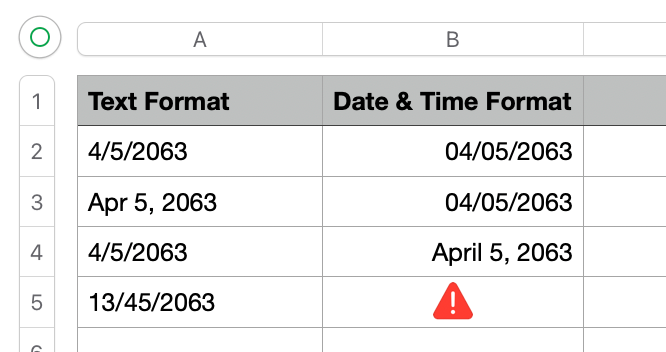
DATEVALUE handles multiple text formats like "4/5/2063" or "Apr 5, 2063," but it returns an error when the text isn't a valid date, such as "13/45/2063.Column A (text input):
- A2: 4/5/2063
- A3: Apr 5, 2063
- A4: 4/5/2063
- A5: 13/45/2063
Formula in B2, copied down through B5:=DATEVALUE(A2)
Results in column B using DATEVALUE:
- B2: Returns a date value equivalent to April 5, 2063. The display format (04/05/2063 or another layout) is controlled separately (see the note on display format below).
- B3: Returns the same result as B2, correctly interpreting the abbreviated month name "Apr."
- B4: Returns April 5, 2063, handling the single-digit day and four-digit year without issue.
- B5: Returns an error. The text 13/45/2063 is in a date-like format, but is invalid because month 13 doesn't exist and neither does day 45. DATEVALUE doesn't partially succeed like the DATE function and rolls over to the next valid time period. For DATEVALUE, either the text resolves to a real calendar date, or the cell returns an error.
DATEVALUE Error Handling
There are some pesky cases where even when you use this function, you’ll still receive an error and the text based date won’t convert. Here are some reasons why and the fixes:
1. Language and Region Mismatch
Numbers relies on your Mac's Language & Region settings to interpret text-based dates, and this is where a lot of DATEVALUE errors come from. If your text string is written as "25/12/2026" (day/month/year) but your Mac's region is set to the United States (month/day/year), Numbers has no valid way to read 25 as a month, so it throws an error. The trickier version of this problem happens with a date like "05/12/2026," where both readings are valid (May 12, or December 5) month/day combinations. In that case Numbers won't error at all. It will just quietly convert the text to the wrong date, since nothing about the string signals a mismatch.
The Fix: While you could adjust your region settings to match the spreadsheet, this is a VERY BAD idea. It’s a heavy handed fix to a “minor” spreadsheet problem and it’ll probably mess up everything else on your computer that pulls from this setting. A better approach is to parse the text string (see next paragraph below).
2. Non-standard formatting (e.g., "2026.07.09")
Numbers won't recognize uncommon date separators such as periods, spaces, or quotes. If the text string doesn't match a standard calendar format, DATEVALUE will return an error.
The Fix (also the fix for the issue above): Assuming all your dates are written consistently, even if in a format Numbers doesn't recognize, you can deconstruct each part of the date (Year, Month, Day) using the DATE function combined with LEFT, MID, and RIGHT, then reassemble the parts into a real date value (while this may look like a complex formula, you're just slicing the string into three parts and reassembling them).
The exact date slice points depend on how your text string is ordered. It's not one formula for every case, but it's the same technique applied to wherever each date part sits in the string.
For example, say cell A1 contains "2026.07.09" (year first, then month, then day).
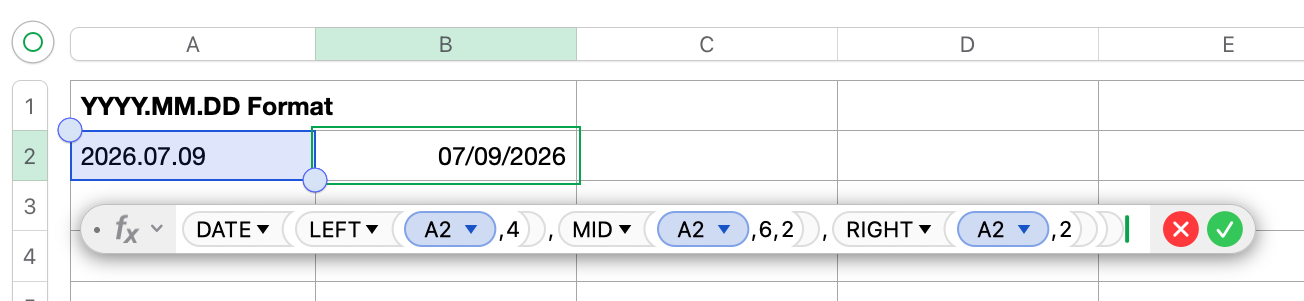
LEFT, MID, and RIGHT inside a DATE formula to extract the year, month, and day separately since DATEVALUE can't parse this format directly.To convert it a YYYY.MM.DD format:=DATE(LEFT(A2,4),MID(A2,6,2),RIGHT(A2,2))
LEFT(A2,4) extracts the year: 2026
MID(A2,6,2) extracts the month: 07
RIGHT(A2,2) extracts the day: 09
The DATE function then combines these three pieces into a proper date/time value.
If your text is ordered differently, say day first, like "09.07.2026", the same idea applies but the slice points move:
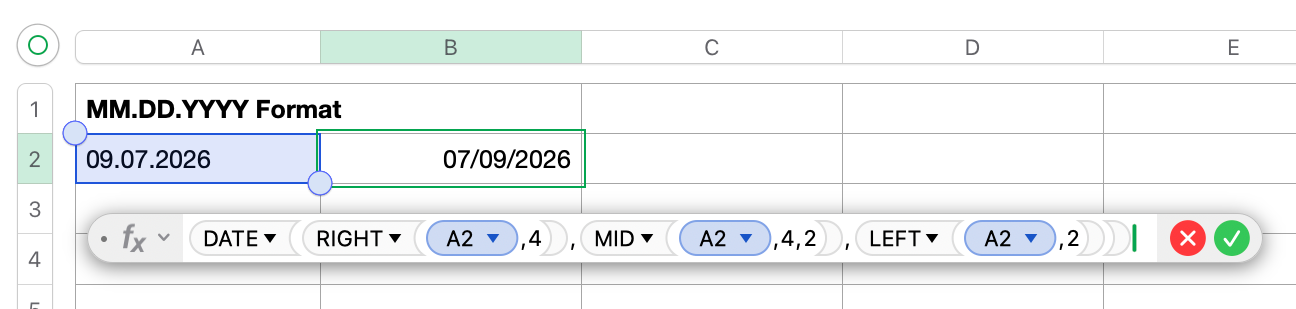
LEFT, MID, and RIGHT pieces are just rearranged inside DATE to match where the year, month, and day fall in the text.To convert it a MM.DD.YYYY format:=DATE(RIGHT(A2,4),MID(A2,4,2),LEFT(A2,2))
LEFT(A2,2) extracts the day: 09
MID(A2,4,2) extracts the month: 07
RIGHT(A2,4) extracts the year: 2026
Before copying either formula down a column, check that every cell in the source data follows the same character positions. A single inconsistent entry, like a one-digit day where the rest of the column uses two digits, will throw off the slice points and give you a wrong date rather than an error, so it's worth a quick visual scan of the source text first.
There's more than one way to approach this. The formulas above are simply one solution among several.
Where Numbers and Excel Actually Diverge
This is the part most explanations of this function skip over, and it's the one place where "full compatibility" needs a small caveat.
In Excel, DATEVALUE returns a serial number a plain integer counting days from a fixed reference date (a raw count of days Excel uses instead of a calendar-style value). That number is how Excel handles date arithmetic under the hood; it just displays as a date when the cell is formatted that way.
In Numbers, DATEVALUE returns a date/time value, not a bare serial number. For everyday use this covers the same ground. Sorting, comparing, calculating durations between dates all work fine. But if you're porting a formula from Excel that specifically expects a raw number back from DATEVALUE, like a calculation that was built to treat the result as an integer, it may not slot in the same way. This has caught people off guard when migrating files, because the function name and stated purpose are identical in both programs, but the underlying data type isn’t.
If you genuinely need a numeric value rather than a date/time value, you'll need an additional conversion step rather than relying on DATEVALUE alone.
When You'll Actually Run Into This Function
Opening an Excel file in Numbers: The most common scenario. A DATEVALUE formula already exists in the file. When you open it in Numbers, the formula stays in place and Numbers recalculates it using its own engine. You'll get a date/time value in that cell rather than Excel's serial number. For almost everything you'd do with that cell afterward, such as reading it, sorting by it, comparing it to another date, this is a non-issue. It only matters if a downstream formula in the same sheet was written to expect a raw number. That formula, not DATEVALUE itself, is where you'd check behavior after the file moves over.
Other Use Cases
- You intentionally built a text string representing a date, such as "6/" & A1 & "/2026", and now want to convert it into a date.
- You receive text from another function or data source that isn’t already typed as a date.
Outside of these reasons, DATEVALUE is essentially redundant in Numbers. In fact, you may never have seen this function ever until you decided to look it up (way to go looking it up in iWork Expert!).
The key takeaway, this function existing in Numbers largely to:
- Maintain functional parity with other spreadsheet programs (looking at you Excel)
- Help with converting imported or text-based dates to proper date/time values
Why Not Change the Data Format Instead?
A common point of confusion is trying to fix a text-based date by selecting the cell and changing its Data Format to Date & Time. This doesn't work because Data Format only changes how a value displays. It has no power to reinterpret what's actually stored in the cell. If the cell contains the text string "12/25/2026" rather than a true date value, switching the Data Format is like renaming a .txt file to .jpg. The extension may have changed, but the underlying file doesn’t turn into a photo.
This is exactly the gap DATEVALUE is built to close: it performs the actual conversion from text to a real date/time value, and only after that conversion happens does a Data Format have anything numeric to act on. A quick way to tell which problem you're dealing with is cell alignment. Text sits left-aligned by default, while true dates and numbers align right. If a cell stays left-aligned even after you've applied a Date & Time format, that's your sign it's still text underneath.
Considerations and Limitations
Considerations
- DATEVALUE accepts a range of common date formats: short numeric, abbreviated month names, and different separator styles generally work.
- Display format is controlled separately from the formula, under Cell → Data Format in the Format sidebar. Changing the display format does not convert text to a date, and converting text to a date does not change the display format.
- If you're entering dates yourself directly into Numbers, you don't need this function. Type the date normally and Numbers will recognize it as a date/time value automatically.
Limitations
- The date-text argument must contain something recognizable as a date. If the text can't be resolved to a real calendar date, DATEVALUE returns an error rather than a partial or best-guess result.
- DATEVALUE does not handle every text format, especially non-standard separators like periods (see Error Handling above).
- The result is a date/time value, not a serial number. This is the main behavioral difference from Excel's version of the function, and it matters if a formula ported from Excel expects a raw integer back.
DATEVALUE earns its place in a couple of narrow cases: you're opening an Excel file that already uses it, or you're cleaning up date-shaped text that came in from an import. For everyday date entry in Numbers, just type the date.
For more detail, see Apple's support guide for DATEVALUE.

Member discussion