
The DATE Function in Apple Numbers Explained
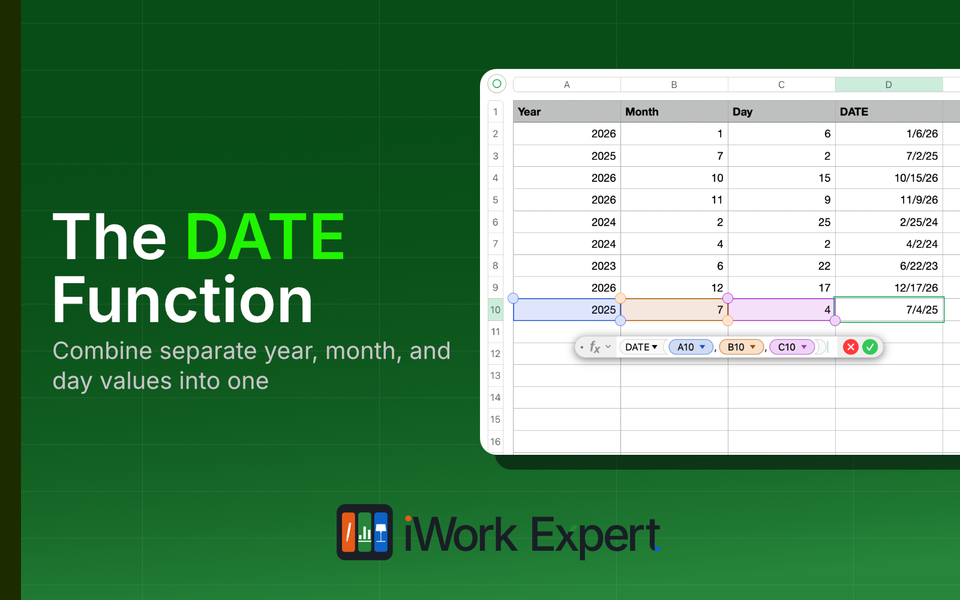
Think about any form that's asked for a date of birth using three separate fields: day, month, year, instead of one text box. It's a common way to collect dates, partly because it avoids someone misreading a typed-in date. The problem shows up after that data lands in Numbers. You've got three separate columns, and none of them work as a date on their own. You can't sort by it, run date math on it, or filter a range until they're combined into one cell. When you find that you need to combine separate date fields into one, that's what the DATE function does.
This post covers what DATE does, how to build the formula, and a few quirks worth knowing along the way, like year handling and overflow behavior. If you've used DATE in Excel, the syntax is identical.
DATE Function Details

Purpose: Combines entries from separate cells into a single cell in which date/time value format
Results: a date value, such as 1/1/2025
Syntax: =DATE(year, month, day)
Arguments: year, month, day
- year = a full, four-digit year. If you enter "25", Numbers reads that as the year 25 and not 1925 or 2025.
- month = a number from 1 through 12.
- day = a number from 1 through the correct number of days for that month (28 to 31).
When You’d Actually Use DATE
The DATE function earns its place in two specific situations:
- Your date data is split across columns - separate year, month, and day columns that need to be combined into one usable date.
- You need consistent interpretation - the result isn't affected by the Language & Region settings on whoever's computer opens the file.
- For example: If someone in the UK opens a file where a US colleague typed 7/4/2026, they might read that as April 7th, not July 4th. The DATE(2026, 7, 4) is unambiguous no matter who opens it because it's always read in the same order: year, month, and date. The underlying date itself doesn't change based on Language & Region settings. Only how it's displayed does.
Outside of those two cases, type the date directly into the cell as a string instead.
How to Use the DATE Function in Numbers
We'll build a date by combining year, month, and day values stored in three separate cells: year in A2, month in B2, day in C2.
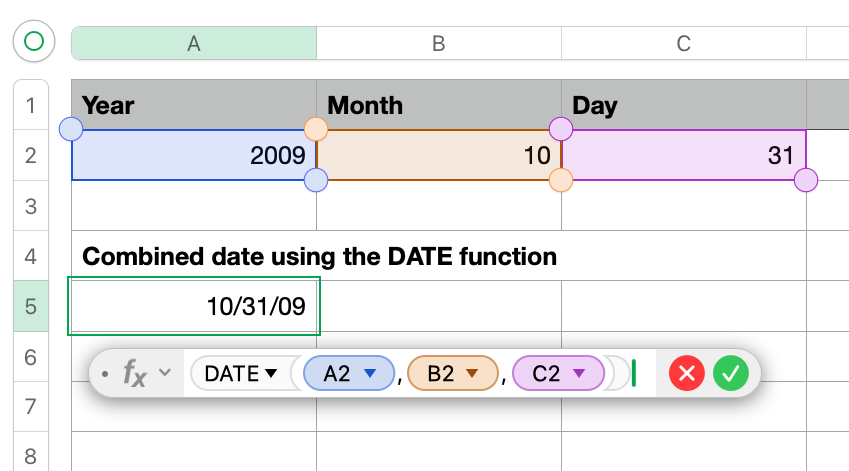
Step 1: Reference the year The first argument is the year. In our example, that's cell A2, which contains 2009.
Step 2: Reference the month The second argument is the month. In our example, that's cell B2, which contains 10.
Step 3: Reference the day The third argument is the day. In our example, that's cell C2, which contains 31.
Step 4: See the result The completed formula is =DATE(A2, B2, C2). With A2 = 2009, B2 = 10, and C2 = 31, the result is 10/31/09, formatted automatically according to the Language & Region settings on the Mac.
What Happens With Bad Inputs
INCORRECT INPUT TYPE
If any argument points to a cell that's empty or contains text instead of a number, the DATE function returns an error rather than a date. If you're combining data from an import or a form, it's worth double-checking that all three source columns are actually numeric before relying on DATE to combine them.
MONTH OR DAY VALUE ERRORS
Month and day values outside their normal range are a different story. DATE doesn't reject an out-of-range month or day outright. Instead, it rolls the value over into the next month or year, and Numbers flags the cell so you know it happened. More on exactly how that works below.
Why is my DATE function showing an error?
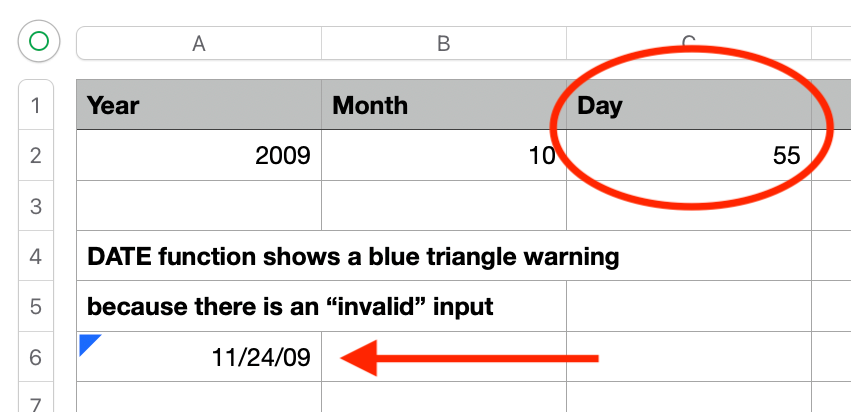
If one of the three referenced cells is empty, contains text, or isn't a clean number, Numbers flags the cell with a red triangle in the middle: the formula-error indicator. A blue triangle in the upper-left corner means something different. It's a warning, and the formula still produced a result. This is exactly what shows up when DATE receives a month or day value outside its normal range. Click either triangle and Numbers tells you specifically what's going on.
The fix for an actual error is the same regardless. Clean up the source data and confirm year, month, and day are all genuinely numeric with nothing blank.
Month and Day Overflow
DATE doesn't reject a month or day value outside its normal range. It does the math anyway and rolls the result into the next month or year. Numbers flags this with a blue triangle warning on the cell, so you'll catch it even without checking every result by eye.
Month overflow: Any value over 12 rolls into the following year. A date of 13/01/2023 (mm/dd/yyyy) is interpreted as 01/01/2024. The month advances by one (13 minus 12), since there are only 12 months in a year.
Day overflow: Any value beyond the days in that month rolls into the next month. A date of 01/33/2023 (mm/dd/yyyy) is interpreted as 02/02/2023. The day advances by two (33 minus 31), since January has 31 days.
Neither of these is a typical issue if your source data is clean. But if you're pulling year, month, and day values from an import or a form where someone could type 13 for a month or 32 for a day, it's worth building a quick check rather than relying on catching every blue triangle by eye, especially across a large column of data.
Checking for a bad month is simple, since the limit never changes:
=IF(B2>12,"Check this row","OK")A simple way to check if you have a "bad month" within your data
Checking for a bad day is trickier, since the limit changes by month (and by leap year for February). Rather than tracking those limits yourself, let function EOMONTH do it. EOMONTH returns the last day of a given month, so pairing it with DATE and DAY gets you the actual maximum day for that year and month, automatically:
=IF(C2>DAY(EOMONTH(DATE(A2,B2,1),0)),"Check this row","OK")A way to check for a "bad day" within your data
Drop either of these in a column next to your data and you've got a visual flag for any row worth a second look, without relying on spotting a small blue triangle in a sea of cells.
Considerations and Limitations
Considerations
- Use DATE when combining separate year, month, and day values, or when you need a date that reads the same regardless of who opens the file. Otherwise, just type the date directly into the cell.
- If you're pulling values from an import or form where bad entries are possible, build a check across the column rather than relying on spotting every blue triangle by eye (see the overflow section above).
Limitations
- All three arguments must be genuine numbers. An empty cell, text, or anything non-numeric in year, month, or day causes an error.
- Numbers won't expand a two-digit year for you. Entering 15 gives you the year 15, not 1915 or 2015. This mostly matters when converting a spreadsheet with very early years into Excel, since Excel's serial-number date system may not handle years that far outside a normal range the way you'd expect.
- Month or day values outside their normal range don't error out. DATE rolls the overflow into the next month or year and flags the cell with a blue triangle so you know a shift happened.
Use the DATE function when you need to combine year, month, and day values from separate cells, or when you need a date interpreted consistently regardless of someone's Language & Region settings. For everything else, just type the date directly into the cell.
For more detail, see Apple's support guide for DATE.
Related Functions
- DATEVALUE - converts a date stored as text into an actual date value.
- YEAR / MONTH / DAY - the reverse of DATE: pulls a single component back out of an existing date.
- EOMONTH - returns the date of the last day of the month that is a specified number of months before or after a starting date.

Member discussion