
How to Type Special Characters and Symbols in Pages, Numbers, and Keynote
Pages, Numbers, and Keynote support the full range of Mac special characters, but the methods of typing them aren't always obvious. Here's how to type accent marks, copyright and trademark symbols, em dashes, currency signs, and math characters, whether you're writing in Pages, building a spreadsheet in Numbers, or designing slides in Keynote.
Here's how to type any symbol you need:
- Long-press a key for accent marks and diacritical marks
- Option key shortcuts for symbols you may use regularly
- Character Viewer for anything else (a catch all for every available symbol on Mac)
- Create your own shortcut for symbols you use often that don't have one
I'll also mention a few troubleshooting solutions in case they pop up.
Method 1: Long-Press a Key (Best for Accent Marks)
The fastest way to add an accented character in Pages, Numbers, or Keynote is to hold down the base letter key until a small popup appears with accent options. For example, you want "Ŵ", so the base letter is "W". For any accent mark, simply long-press the base letter for the accent you want, wait until the popup comes up, and then click the accent or key in the corresponding number key above that accent mark. This works for both lower and upper case.
The long-press method covers accent marks — also called diacritical marks — the dots, tildes, cedillas, and other marks added to base letters.
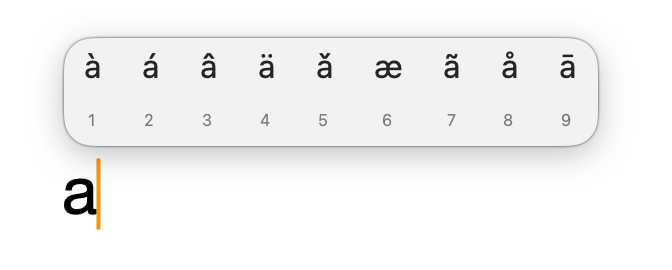
This works for:
- Vowels with accents: á, à, â, ä, å, æ, é, è, ê, ë, í, ì, î, ï, ó, ò, ô, ö, ú, ù, û, ü
- ñ (long-press the N key on your keyboard)
- ç (long-press the C key on your keyboard)
- Any letter that has an accent mark - that's the only thing you really need to remember
Note: Long-press only works when your cursor is active in a text field in Pages, Numbers, or Keynote. It won't trigger if the app is interpreting the long press for another purpose.
Method 2: Option Key Shortcuts (Best for Symbols You Use Repeatedly such as Copyright, Trademark, and Currency Symbols)
If you regularly type the same symbols in Pages, Numbers, or Keynote such as an em dash, a copyright sign, a degree symbol, learning its Option key shortcut is worth it. These shortcuts work directly in all three iWork apps (and everywhere else on your Mac for that matter as these shortcuts are not specific to the iWork apps).
I've put together a list of what I think are the most frequently used Option key shortcuts organized by category. If you don't see the symbol you need here, skip to Method 3 as it covers anything not covered here.
Note: the + sign means "and", so Option + 2 means press the Option key and while holding it down press the 2 key.
Legal symbols (Copyright, Trademark, Registered Trademark)
™ = Option + 2 — Trademark
© = Option + G — Copyright
® = Option + R — Registered trademark
Punctuation and typography (Em Dash, Ellipsis, Quotation Marks, and More)
§ = Option + 6 — Section
¶ = Option + 7 — Pilcrow / paragraph
… = Option + ; — Ellipsis
· = Option + Shift + 9 — Separator bullet / interpunct (small bullet)
• = Option + 8 — Bullet (large bullet)
† = Option + T — Dagger
‡ = Option + Shift + 7 — Double dagger
– = Option + Hyphen — En dash
— = Option + Shift + Hyphen — Em dash
« = Option + \ — Left guillemet
» = Option + Shift + \ — Right guillemet
‘ = Option + ] — Left curly single quote
’ = Option + Shift + ] — Right curly single quote
“ = Option + [ — Left curly double quote
” = Option + Shift + [ — Right curly double quote
¡ = Option + 1 — Inverted exclamation mark
¿ = Option + Shift + ? — Inverted question mark
Text substitutions may automate some of these symbols. For example, two hyphens will sometimes auto-correct to an em dash, but the shortcut is more reliable in case auto-correct doesn't, well auto-correct.
Currency (Cents, Euro, Pound Sterling, Yen, and Dollar)
¢ = Option + 4 — Cent
€ = Option + Shift + 2 — Euro
£ = Option + 3 — Pound sterling
¥ = Option + Y — Yen
$ = Shift + 4 (but you probably knew that already 😉)
This is actually it for all the currency based keyboard shortcuts. For additional currency symbols, the Character Viewer has you covered. For example: Won, Rupee, Bitcoin, and more.
Math (Infinity, Pi, Square Root, and More)
≈ = Option + X — Approximately equal
≠ = Option + = — Not equal
÷ = Option + / — Division
√ = Option + V — Square root
∞ = Option + 5 — Infinity
± = Option + Shift + = — Plus or minus
¬ = Option + L — Not sign
≥ = Option + . — Greater than or equal
≤ = Option + , — Less than or equal
∫ = Option + B — Integral
∂ = Option + D — Partial differential
∆ = Option + J — Delta
µ = Option + M — Micro / mu
Ω = Option + Z — Omega / ohm
π = Option + P — Pi
∑ = Option + W — Summation / sigma
Method 3: The Character Viewer (The Catch All for Every Symbol on Mac)
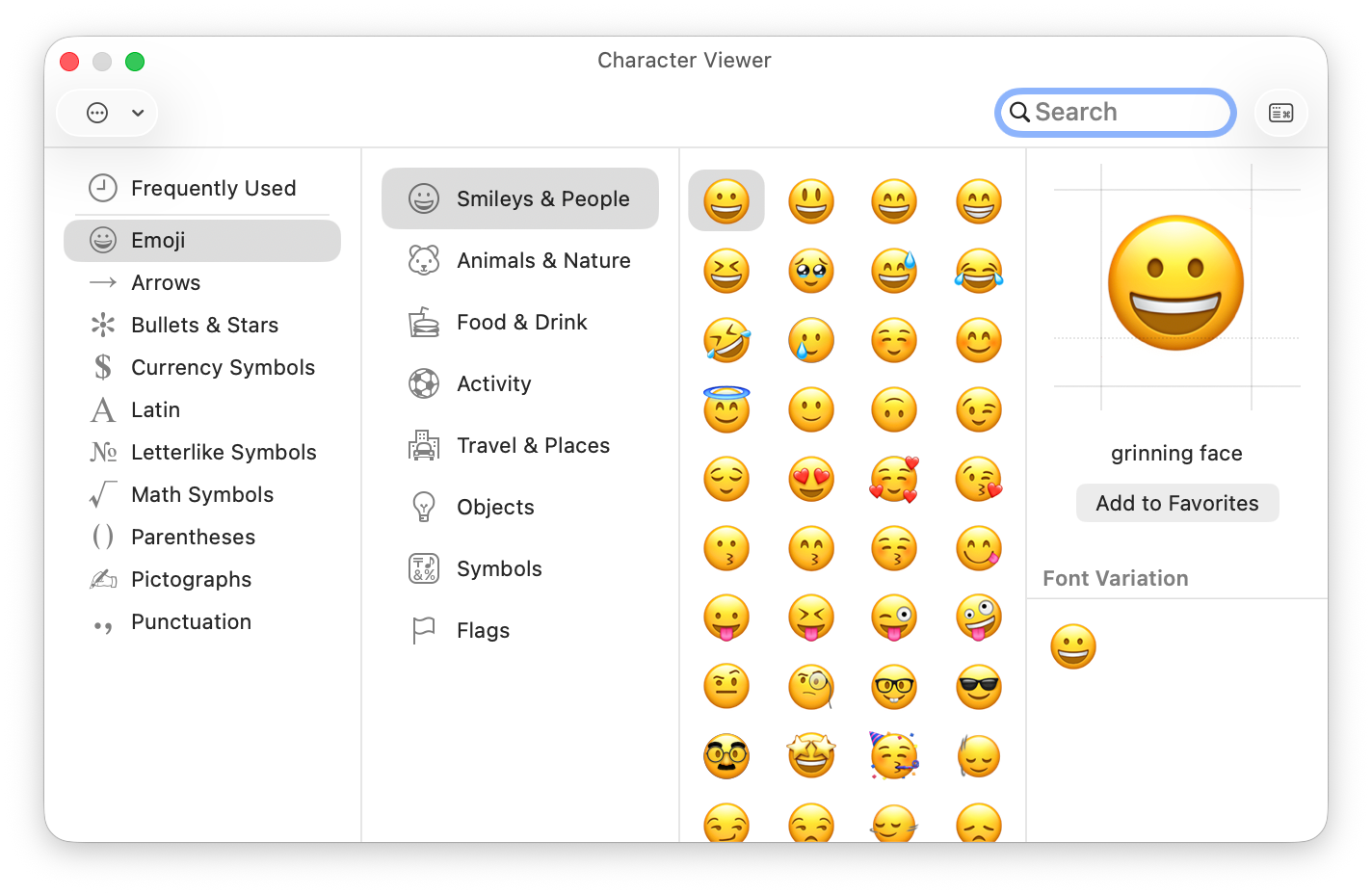
For any symbol you're looking for, the Character Viewer is your catch-all. While you may think this is just a way to pull up emojis, it's much more than that. The symbols side includes arrows, math characters, fractions, checkmarks, and thousands of other characters useful in Pages, Numbers, and Keynote documents.
How to open it:
- In Pages, Numbers, or Keynote: go to Edit > Emoji & Symbols
- Or press Control + Command + Space shortcut from anywhere on your Mac
- Or (my preferred method) hit the globe with meridians icon key 🌐 on your Mac keyboard to bring up the Character Viewer menu
Once open, you can search by name. Double-click any symbol to insert it where your cursor is in Pages, Numbers, or Keynote.
Character Viewer is great is you only have to use it once in a while. However, if you have a symbol you need to use repetitively and there's no keyboard shortcut for it, going to the Character Viewer becomes tedious. The solution is to create your own shortcut.
Method 4: Create Your Own Keyboard Shortcut
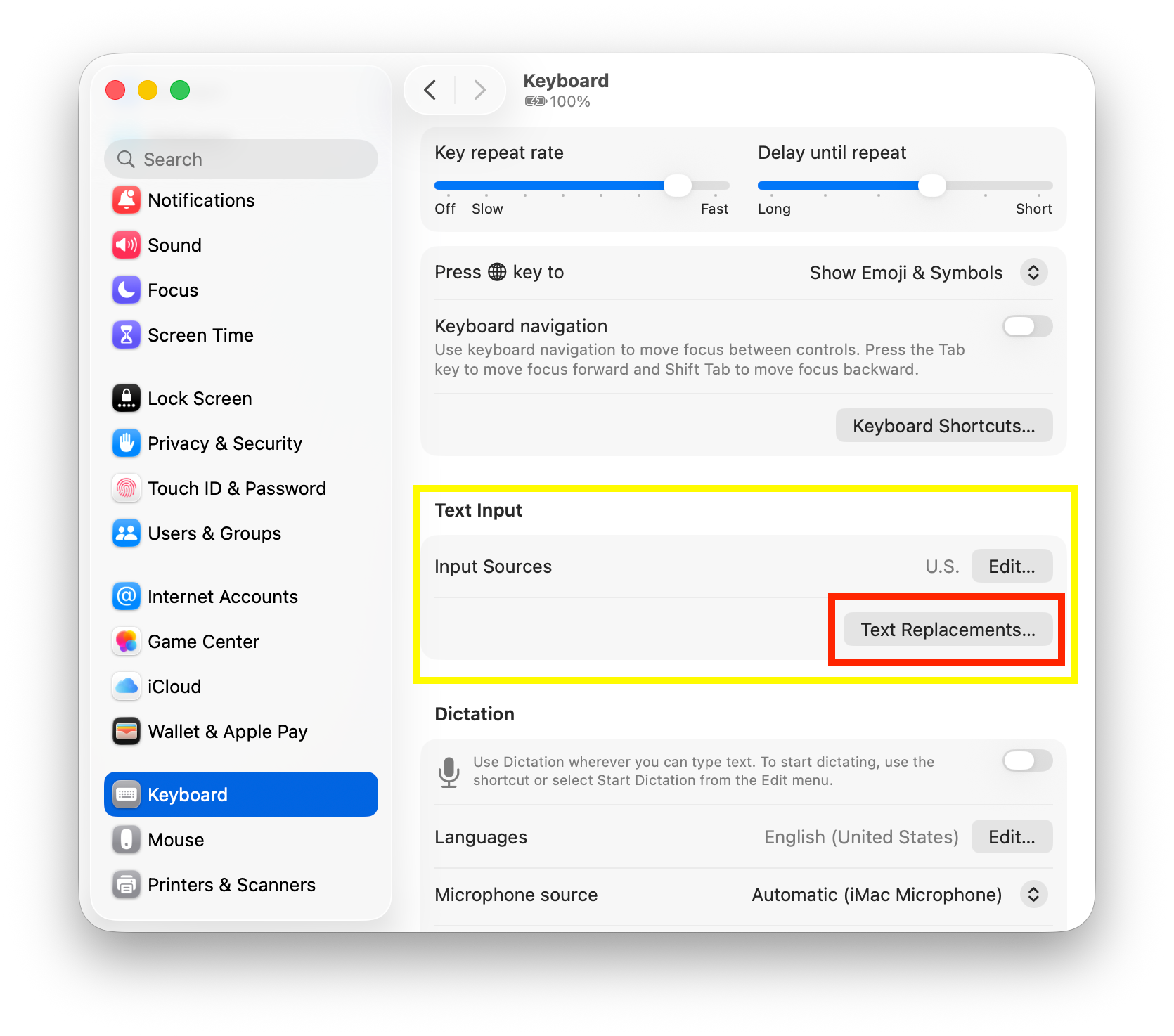
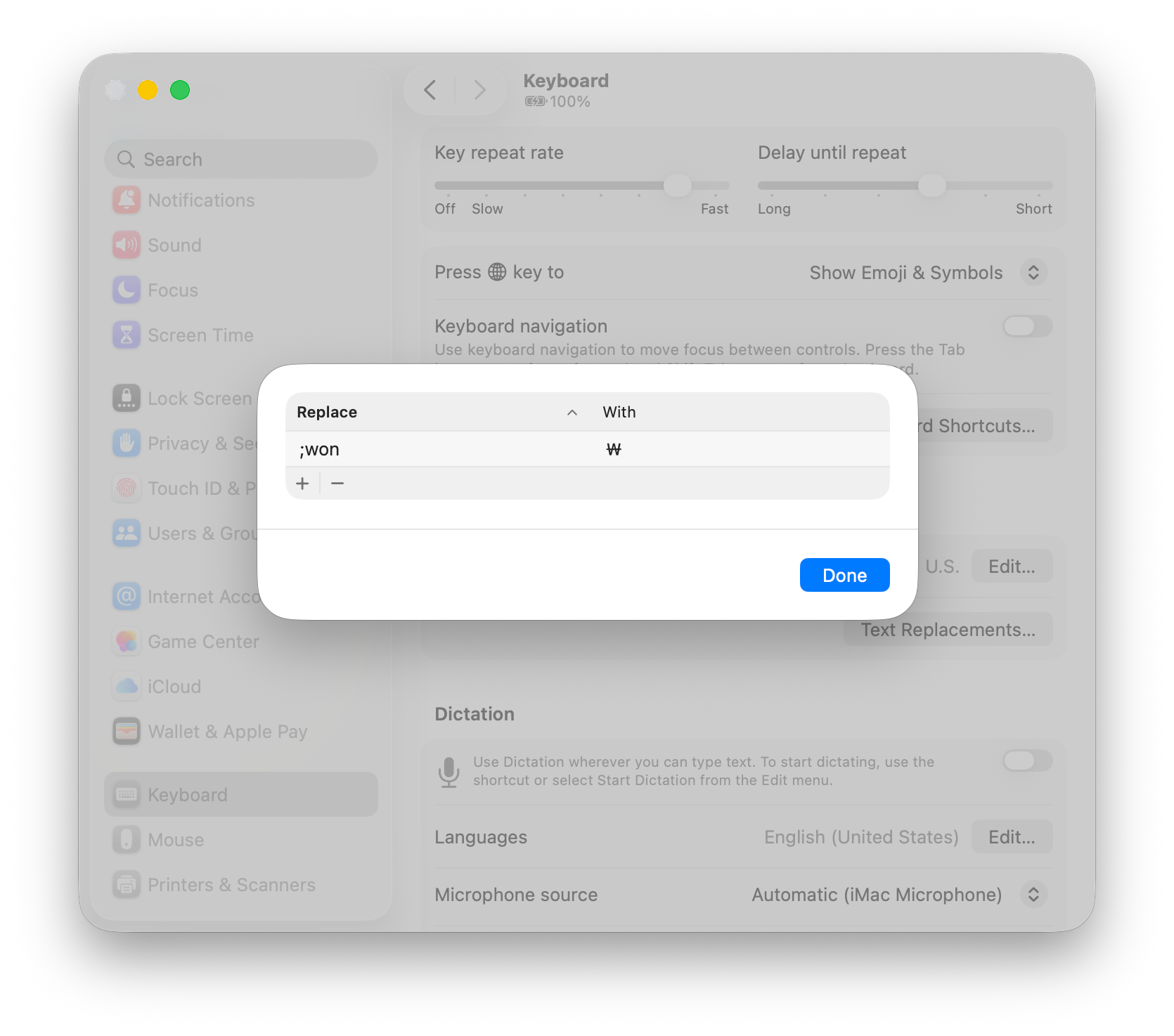
For those symbols or characters that don't have a keyboard shortcut, you can create your own. On your Mac, go to System Settings > Keyboard > Text Replacements.... Click the + button to add, then add your shortcut in the Replace field with the symbol or character you want in the With field.
For example, Mac doesn't have a lot of currency shortcuts outside of those I mentioned above. If you often need to type currency symbols, you can come up with a shortcut like ";won" to update to the Korean Won symbol "₩". Same for the Indian Rupee ";rupee", etc.
Note: the With field has a hard time with direct input of certain characters. If you find that the symbol you're selecting from the Character Viewer isn't showing up in the With field, type the symbol in Pages from the Character Viewer and then copy/paste into the With field.
Hidden gems in the Character Viewer (Music Notation, Card Suits, and More)
Most people don't realize how much is in here beyond standard symbols. A few categories worth knowing about:
Music notation — ♩ ♪ ♫ ♬ ♭ ♮ ♯
Playing card suits — ♠ ♥ ♦ ♣
Other Pictographs (chess, dice, playing cards, mahjong tiles, dominos, and more) — ♛ ♜ ♝ ♞ ⚃ ⚄ ⚅ 🂡 🂢 🂣 🂤 🀄︎ 🀀 🀁 🀂 🀺 🁉 🁓 🁴 🁷 🂄
A Few More Helpful Tips
Keyboard Shortcut Already In Use
Sometimes a keyboard shortcut is being overridden by something else, usually another app. The keyboard shortcuts I've provided are all accurate, so if it's not working and you notice another behavior happening when you push that combination of keys, then you'll want to navigate that app, check out the settings, and remove any keyboard shortcuts it has. This doesn't happen often, but when it does this is often the culprit.
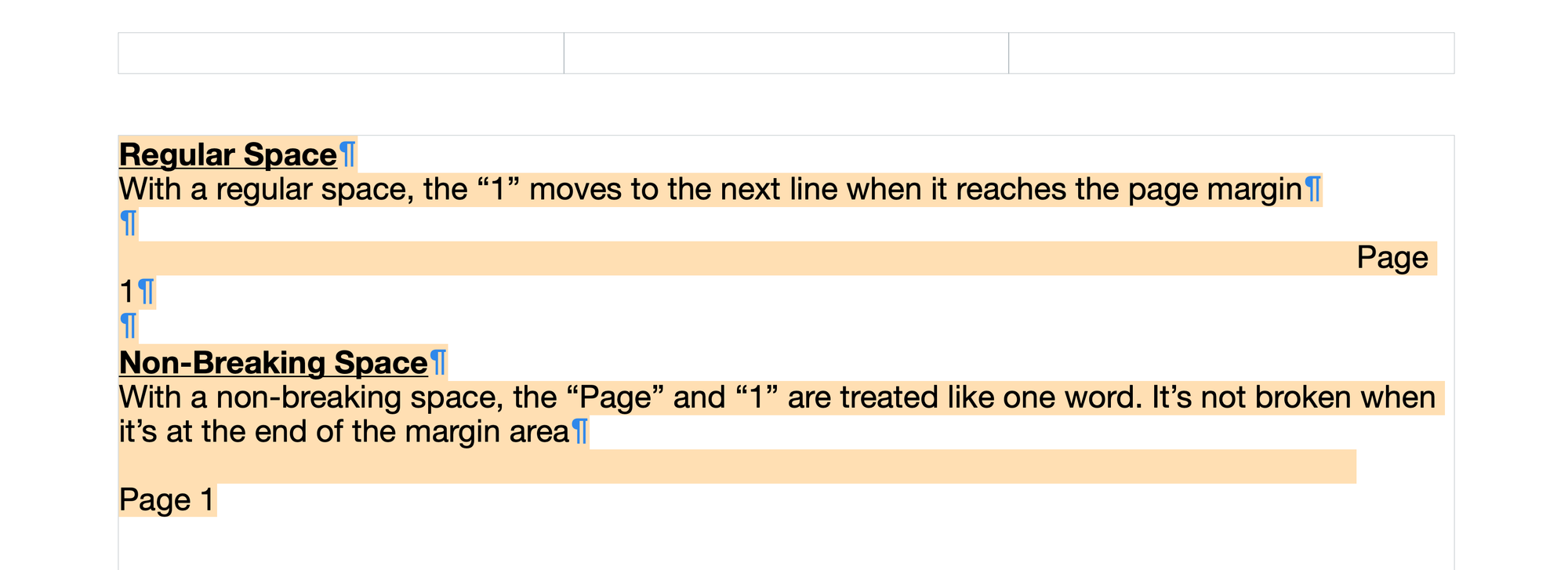
Non-breaking space (Option + Space)
In Pages, Numbers or Keynote, a regular space allows a line break between two words. If you want to keep words together like "Page 1" or "Fig. 2" use Option + Space instead. It may look identical but it tells Pages to treat the two words as a unit.
Unicode Hex Input
This is an option I haven't mentioned, but I don't think this is worth your time. I find it finicky and ultimately a frustrating user experience. As much as I like to offer options and other references, I will pass on this method. If you don't know what Unicode Hex Input is, you're not missing out on anything.
The best solution is to create your own keyboard shortcut.
Between long-press, Option key shortcuts, the Character Viewer, and your own custom shortcuts, you've got every method covered for typing special characters in Pages, Numbers, and Keynote. Once you've got your most-used symbols memorized or set up as shortcuts, you'll barely think about it again.
For official Mac keyboard shortcut documentation:

Member discussion