
The COUNTIF Function in Numbers Explained
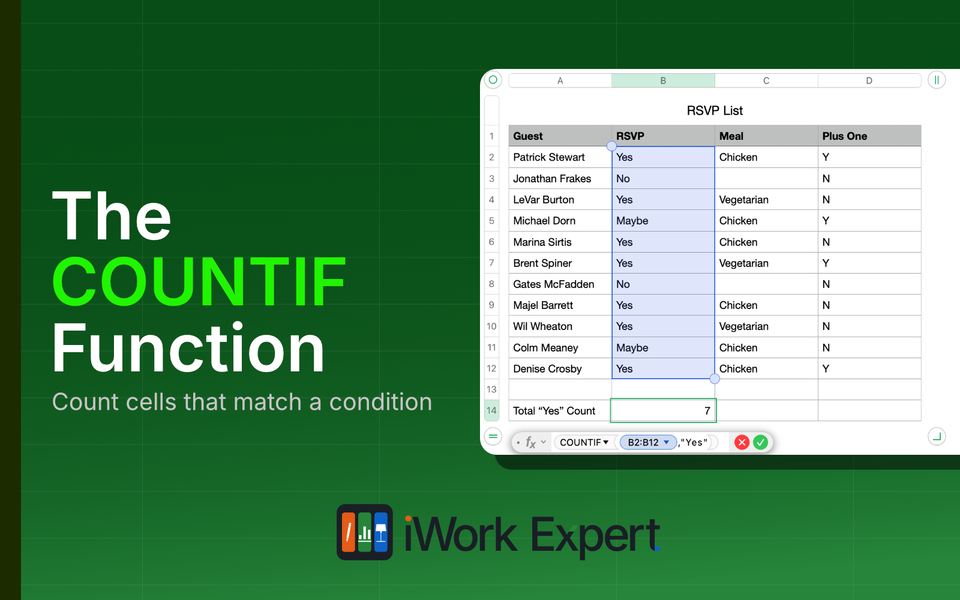
Let's say you're finalizing headcount for a work party and you've got a signup sheet with everyone's RSVP status. What you actually need to know isn't how many names are on the list, it's how many people said yes. Scrolling through and tallying by eye works fine at ten names. It gets tedious if the list grows much more beyond that. What you need is a way to count based on a condition. That's exactly what COUNTIF does.
COUNTIF counts the cells in a range, but only the ones that match a condition you set. It’s in the function name itself: count, if a condition is met.
One interesting (or perhaps annoying) tidbit: unlike the SUMIF and SUMIFS functions where SUMIFS reorders the arguments and puts sum-values first, COUNTIFS keeps the exact same pattern as COUNTIF, just plug in the conditions on repeat: test-array, condition, test-array, condition, and so on for each extra condition.
COUNTIF Function Details

Purpose: Returns the count of cells in a collection that satisfy a given condition
Result: A count of cells that match the condition
Arguments: =COUNTIF(test-array, condition)
- test-array: The group of cells you're applying the condition to
- condition: the criteria each cell is tested against, resolving to true or false. You can write it a few different ways:
- comparison operators (
=,<,>,<=,>=,<>) - constants (values that don't change)
- references (a value pulled from another cell)
- ampersand concatenation operator (combines the contents of conditions or cells, like less than what's in cell A2:
"<"&A2) - wildcards (?, *, ~) or REGEX
- comparison operators (
If you're coming from Excel, COUNTIF syntax looks like =COUNTIF(range, criteria). Conceptually, Numbers arguments are setup in the exact same way, just the labels used for syntax is different: test-array instead of range, condition instead of criteria.
Quotations
Quotations in the COUNTIF formula can get confusing because some conditions need to be in quotes while others do not. Direct cell references do not need quotes. However, if you type text or a comparison operators in the formula, those must be wrapped in quotation marks. Here is a really simple, three-tiered approach:
- Direct cell references (no quotes):
A2 - Text or hardcoded operators (use quotes):
"Chicken",">50","<=2026" - Combining operators with a cell reference (partial quotes):
"<="&A2
(notice the comparison <= is in quotes, but the ampersand and cell reference A2 is not)
More Ways to Write the Condition
- Count if equal to 10 →
"10" - Count if greater than 100 →
">100" - Count if less than or equal to 100 →
"<=100" - Count if equal to "bob" →
"bob" - Count if not equal to "bob" →
"<>bob" - Count if cell starts with "ka" →
"ka*" - Count if cell contains "ka" anywhere →
"*ka*" - Count if cell starts with "ka" and has exactly one character after →
"ka?" - Count if equal to what's in cell A1 →
A1(no quotes) - Count if less than what's in cell A1 →
"<"&A1 - Count if less than a specific date →
"<2/1/2026"
Same rule of thumb as other IF functions: almost everything goes in quotes except a direct cell reference. For the ampersand operator specifically, keep the cell reference outside the quotes, or Numbers reads it as the literal text "B2" instead of whatever value is sitting in that cell.
When You'd Actually Use COUNTIF
COUNTIF is for the moment you want data counted by one thing. Not "how many people are on this list," but "how many people on this list said yes."
A few situations where that comes up in practice:
- You've got an RSVP list and need a headcount of confirmed guests before you give the caterer a number.
- You're tracking maintenance requests for a rental property and want to know how many are still marked "Open."
- You've got a class roster of test scores and want to know how many students scored above 90.
- You're reviewing survey responses and want to know how many people picked a specific answer.
The common thread is one condition, one total count back. The moment the question becomes two conditions at once, like "how many guests are confirmed and want the chicken," COUNTIF can't do that. That's your cue to use COUNTIFS instead.
How to Use the COUNTIF Function in Numbers
I'll show a brief step by step guide on how to use COUNTIF for finding a total count of "Yes" responses in an RSVP column.
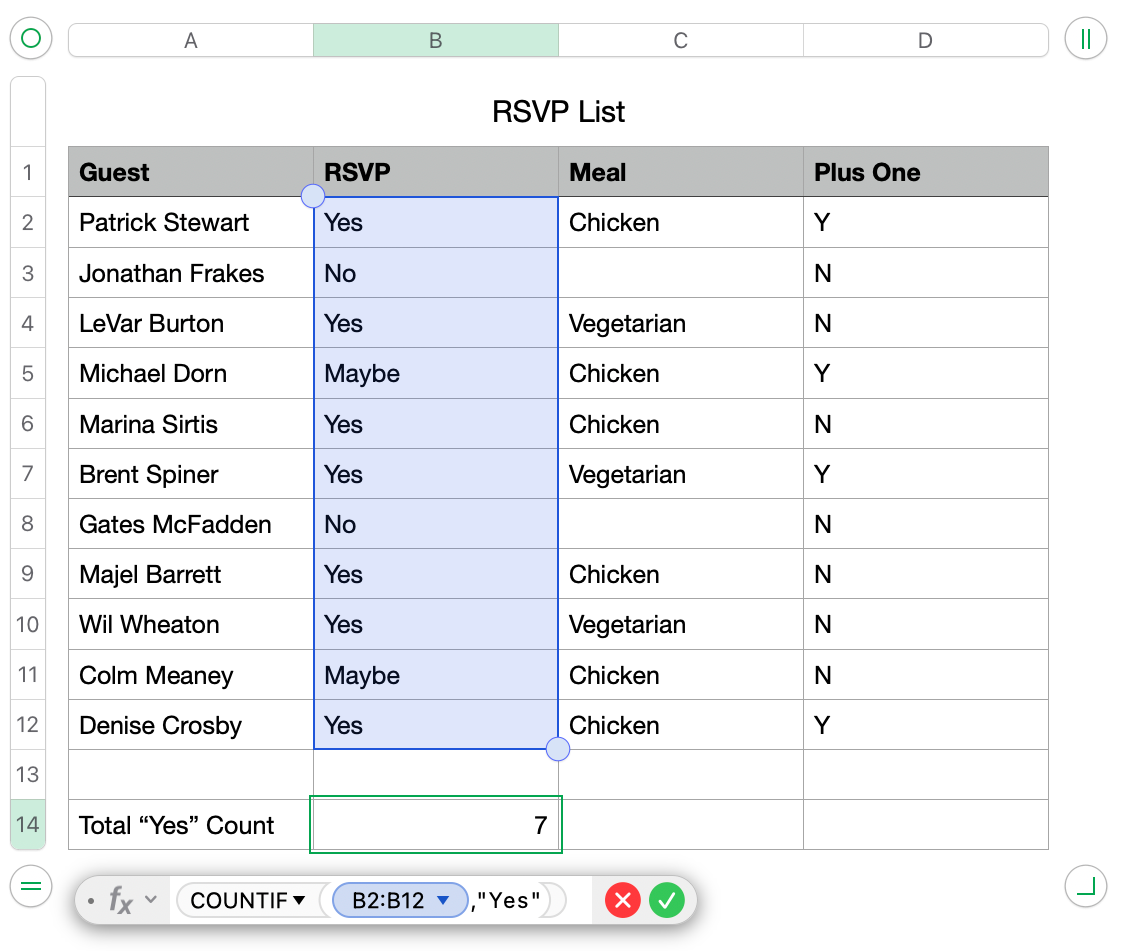
COUNTIF formula in Apple Numbers calculating the number of "Yes" responses (resulting in 7) by evaluating the selected cell range B2:B12.Step 1: Reference the test-array This is the range of cells you're checking. In our example, that's cells B2:B12.
Step 2: Enter the condition This is the criteria that decides whether a cell gets counted. In our example, I want to count only those cells that say "Yes", so I'll enter"Yes". Note the quotation marks as this is a hardcoded text-operator.
Step 3: See the result The completed formula is =COUNTIF(B2:B12,"Yes"). This provides the result of 7 which is the total of cells B2, B4. B6, B7, B9, B10, and B12.
An Example Using COUNTIF
Before reaching for COUNTIF, double check you're actually only testing one condition. It's an easy thing to miss, since a request can sound simple and still be asking for two things at once.
Here's a common version of that trap: a caterer has an RSVP list and asks, "Show me how many people want chicken who brought a plus one." That sounds like one ask, but it's really two conditions: meal (chicken) and plus one (Y or N). COUNTIF can't do that. You'd need COUNTIFS since you are asking for more than one condition.
So let's stick with something COUNTIF actually handles: how many people want chicken. Here's a simplified RSVP list for an event.
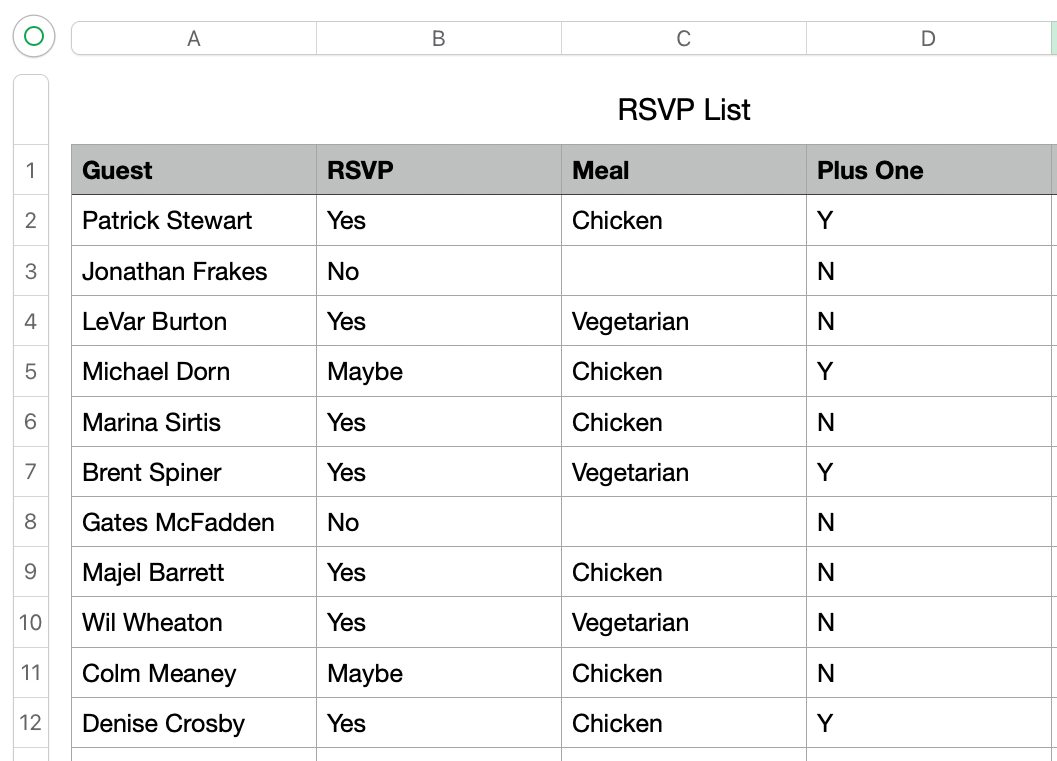
COUNTA or COUNTIF.Total Count of "Chicken" for Their Meal Choice
- test-array: Column C (Meal)
- condition:
"Chicken" - Formula:
=COUNTIF(C2:C12,"Chicken") - Result: 6 (rows 2, 5, 6, 9, 11, and 12)
To answer other variations, you're just pointing the same two arguments at a different column or a different condition.
- Total Guests Bringing a Plus One: test-array moves to Column D, condition is "Y."
=COUNTIF(D2:D12,"Y")→ 4 - Total Meals That Aren't Chicken: test-array as the first example, condition changes to "<>Chicken."
=COUNTIF(C2:C12,"<>Chicken")→ 5
Note: using the formula this way results in 5 because COUNTIF is also counting the blank cells in cells C3 and C8
Same function, same two-part structure every time. Only the column and the condition change depending on what you're asking.
What COUNTIF Isn't For
Worth pointing out what COUNTIF isn't for. Picture that same RSVP list. If the question is "how many guests are on this list" instead of "how many said yes," you're not filtering by a condition anymore, you're just counting rows. COUNTIF will still run if you hand it a condition built to match everything, but that's solving a problem that already has a simpler answer. COUNTA counts every non-blank cell in a range without needing a condition at all.
The other direction: if what you actually need is a total rather than a tally, say the total cost of meals per guest, COUNTIF only tells you how many, not how much. That's what SUMIF is for.
COUNTIF Error Handling
The most common issue with COUNTIF isn't a red warning triangle, it's a formula that runs fine and quietly returns 0. That usually traces back to one of these:
- The condition text doesn't exactly match what's in the cells (extra spaces, a typo, mismatched capitalization on something elsewhere in the sheet that does need an exact match).
- The column is formatted as numbers instead of text, and the condition uses a wildcard. Wildcards need a text-formatted column to match reliably.
- The condition is missing quotes where it needed them, or has quotes around a cell reference that should have been left bare.
If a result looks off rather than an outright zero, double check the test-array is actually pointing at the column you meant to test. It's an easy accident to make if you're moving too fast in your spreadsheet.
COUNTIF Considerations and Limitations
These are some consideration and limitations when using the COUNTIF function.
Considerations
- The test-array can encompass any number of cells.
- Avoid concatenation with the test-array, but using concatenation when it entering the condition is okay.
- Cells references are not put in quotes, but everything else usually is.
Limitations
- COUNTIF only checks one condition. For more than one, use COUNTIFS.
- COUNTIF isn't case sensitive. "yes," "Yes," and "YES" all count the same.
Why Not Just Use Quick Calculations Instead?
Numbers has a Quick Calculations bar at the bottom of the window that shows a live SUM, AVERAGE, MIN, MAX, and COUNTA the moment you select two or more cells. It's a genuinely handy gut check, but the trick is knowing when to rely on it.
While there isn't a COUNTIF function here, using it solves the dilemma when numbers change. Someone switches from a no to a yes or someone's plus one can't make it. COUNTIF will automatically update based on your data changes as long as your formula references the correct range of cells.
COUNTIF is the function to reach for any time you need a tally filtered by one condition: confirmed guests, open tickets, scores above a threshold. Once you understand this function, adapting it to a new question is mostly just swapping which column and condition you're pointing at.
If you find yourself needing to check two conditions at once, that's your cue to move on to COUNTIFS.
For more detail, see Apple's support guide for COUNTIF.
Related Functions
COUNTA - counts every non-blank cell in a range, no condition involved
COUNTBLANK - counts empty cells in a range
COUNTIFS - counts cells that meet two or more conditions at once
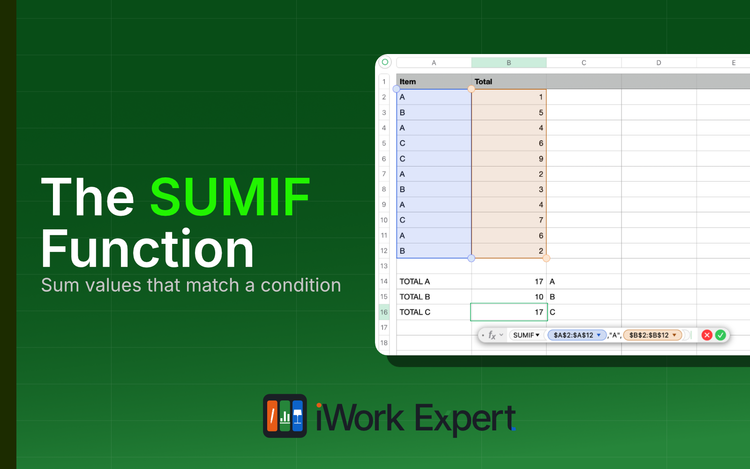
SUMIF - sums cells that meet a single condition, rather than counting them
I used to work in a grocery store when I was a teen. Every day my manager asked me, "Bill, tell me how many Carlo Rossi's [wine] we have out there?" meaning how many were on the shelf and, ultimately, how many would we need to bring out from the back. We had several types of Carlo Rossi wines like Chardonnay, Burgundy, and so forth. These were the big jugs of wine (4 liters/approx. 1 gallon) and they were located on the bottom shelf. I'd have to get down on my knees and bend over somewhat awkwardly so I could see the entire shelf. Invariably, the wine varieties were all mixed up from customers shuffling them around. Counting all the wines while also trying to avoid scraping myself on the sharp edges of the shelf, I'd count how many of each wine variety there were. I never looked forward to this part of my day. If only this were a spreadsheet task where I could use the COUNTIF function to count just the Merlots, etc. It'd make the task so much easier. 🙂🍷

Member discussion